Google Calendar: booking clients with managers across multiple clubs
The AI agent finds free time in managers' calendars and books the client with whoever is available. The company connects one Google account, groups each club's managers into a separate “calendar” and assigns it to its bots. One calendar can be assigned to several bots — for example, the chat bot and the voice bot of the same club.
How it works
Company Google account ──┬── Vasily's calendar ──┐
                         ├── Peter's calendar   ├── "Fitness club 1" ──▶ club 1 chat bot
                         ├── Maria's calendar  ─┘                    └▶ club 1 voice bot
                         ├── Nikolai's calendar ─┐
                         └── Daniil's calendar  ─┴── "Fitness club 2" ──▶ club 2 chat bot
In a conversation the bot does two things:
- Finds free slots. A single request to Google returns the busy times of every manager in the bot's calendar. A slot is free if at least one of them is free at that time. The bot only offers the client times it has checked.
- Books. Once the client agrees, the bot checks availability again, picks a free manager and creates an event with a Google Meet link in that manager's own calendar. If several managers are free, bookings are distributed among them in turn.
The bot only tells the client the date and time. It does not share the meeting link — the manager sends it personally.
What the club needs
One company Google account
Any Google account the administrator has access to. Its own calendar is used only as a fallback until “calendars” are created. Good practice: a dedicated account such as booking@… rather than the director's personal email.
Managers share their calendars
Each manager, in their own Google Calendar: Settings → My calendars → Share with specific people → Add people, enters the company account's email and chooses the “Make changes to events” permission.
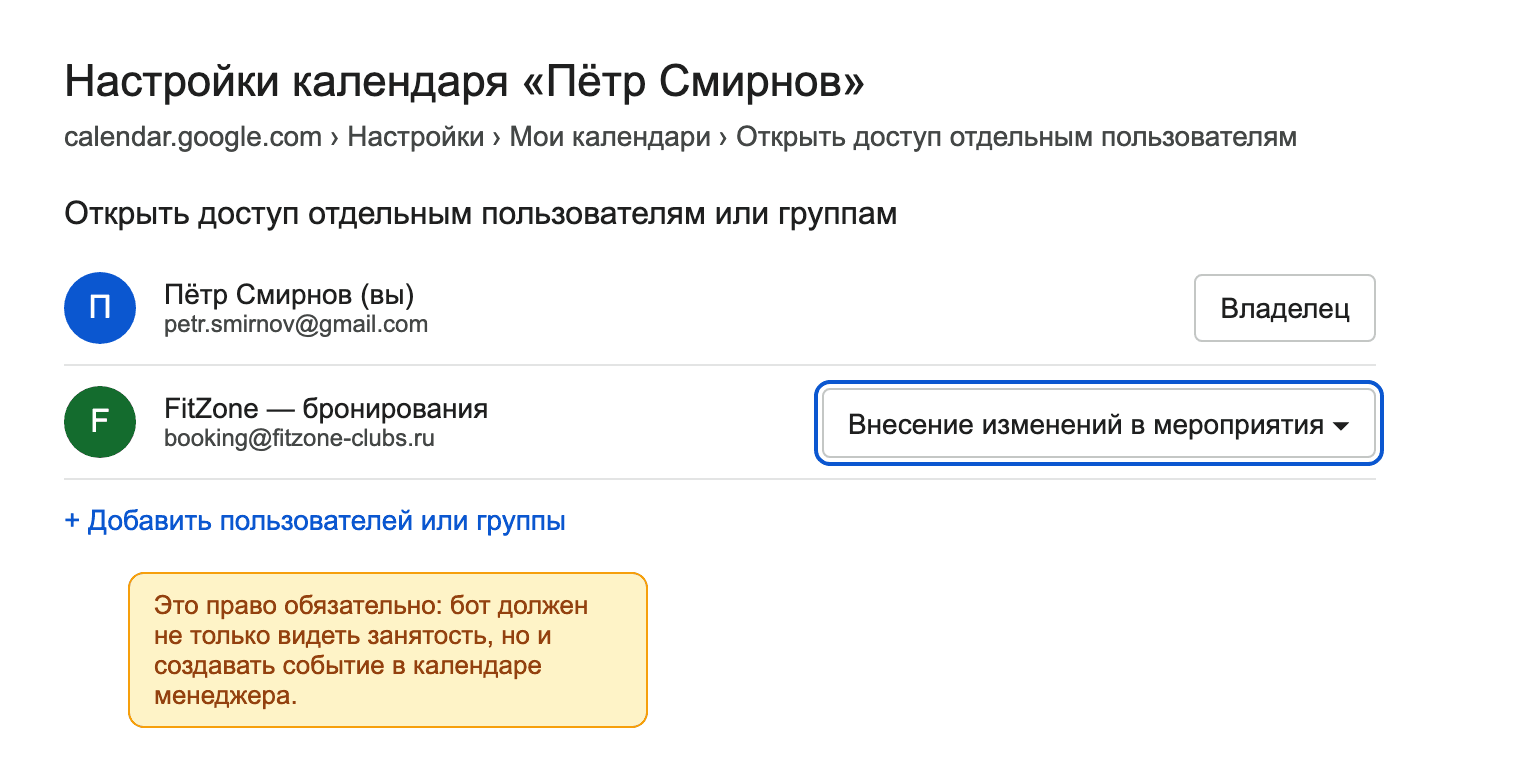
The “See only free/busy” permission is not enough: the bot will see busy times but won't be able to create an event. Such a calendar is marked “read-only” in the dashboard and can't be added to a “calendar”.
Working hours are defined by events
The bot treats any time not taken by an event as free. Managers block off non-working hours, lunch, days off and vacations with recurring events in their own calendars. There is no separate schedule in the dashboard: the calendar is the source of truth.
Setup in the dashboard
Step 1. Connect Google
Settings → Integrations → Google Calendar → Connect. Sign in with the company account and grant calendar access. The card switches to “Connected” and a “Booking calendars” block appears below it.
Step 2. Create a “calendar” per club
Click “+ Add calendar”, give it a name and tick that club's managers. The list shows every calendar the managers have shared with the company account, plus the account's own calendar.
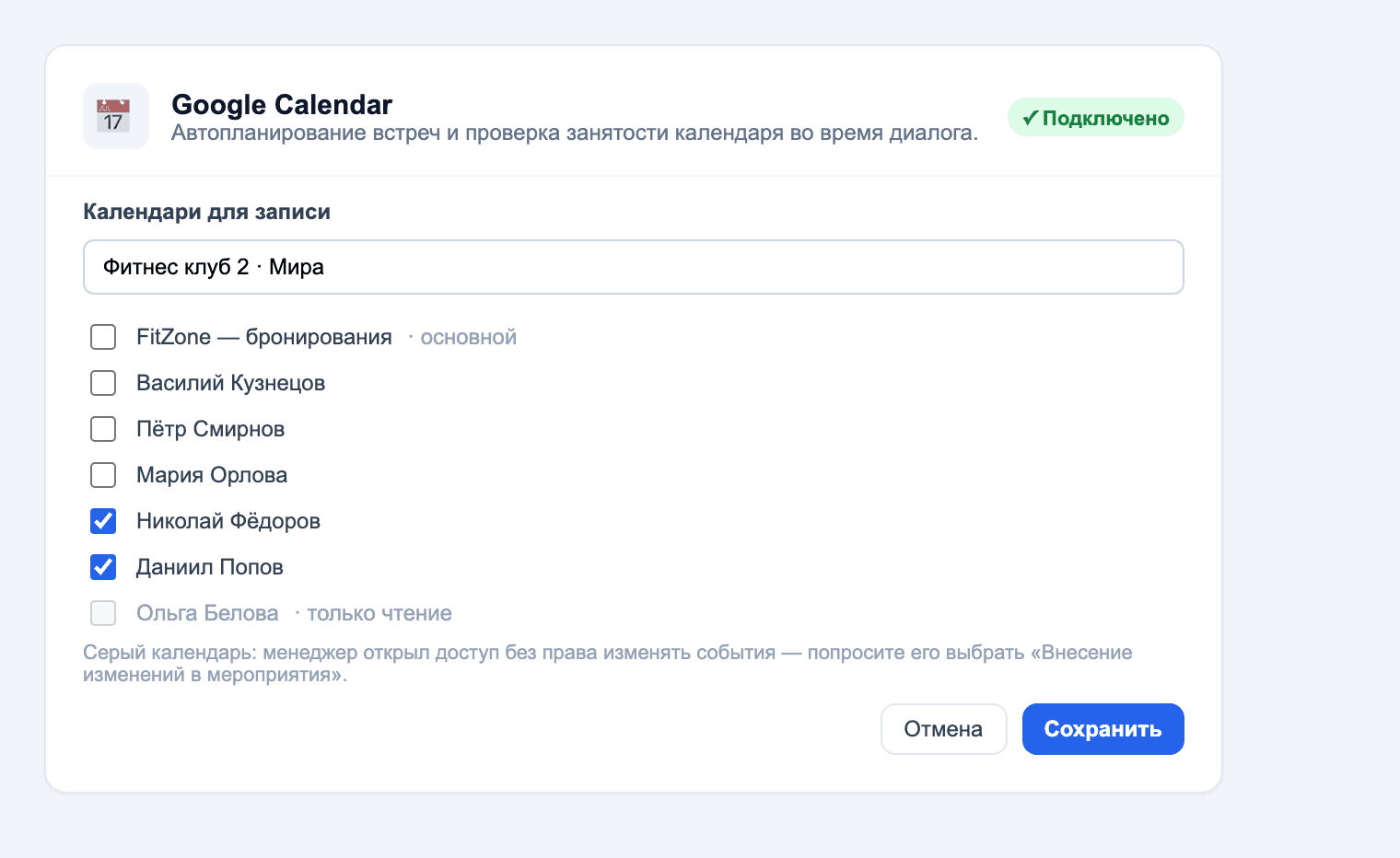
Repeat for every club. The result looks like this:
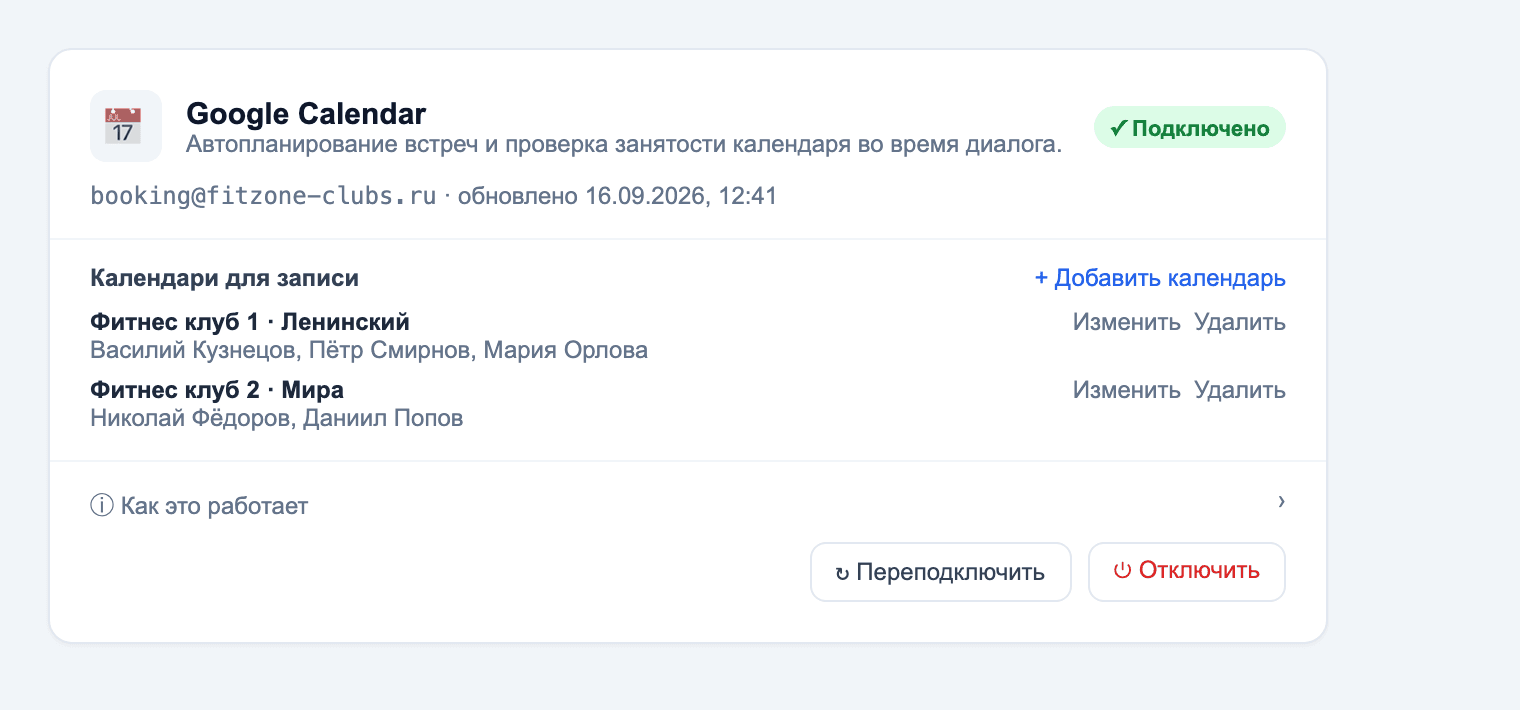
You can edit or delete a calendar at any time. A new club manager is added with a single tick in the existing calendar — no bot needs to be reconfigured.
Step 3. Assign the calendar to a bot
Open the bot and go to the Tools tab. Under the “Find free calendar slots” tool there is a Booking calendar selector.
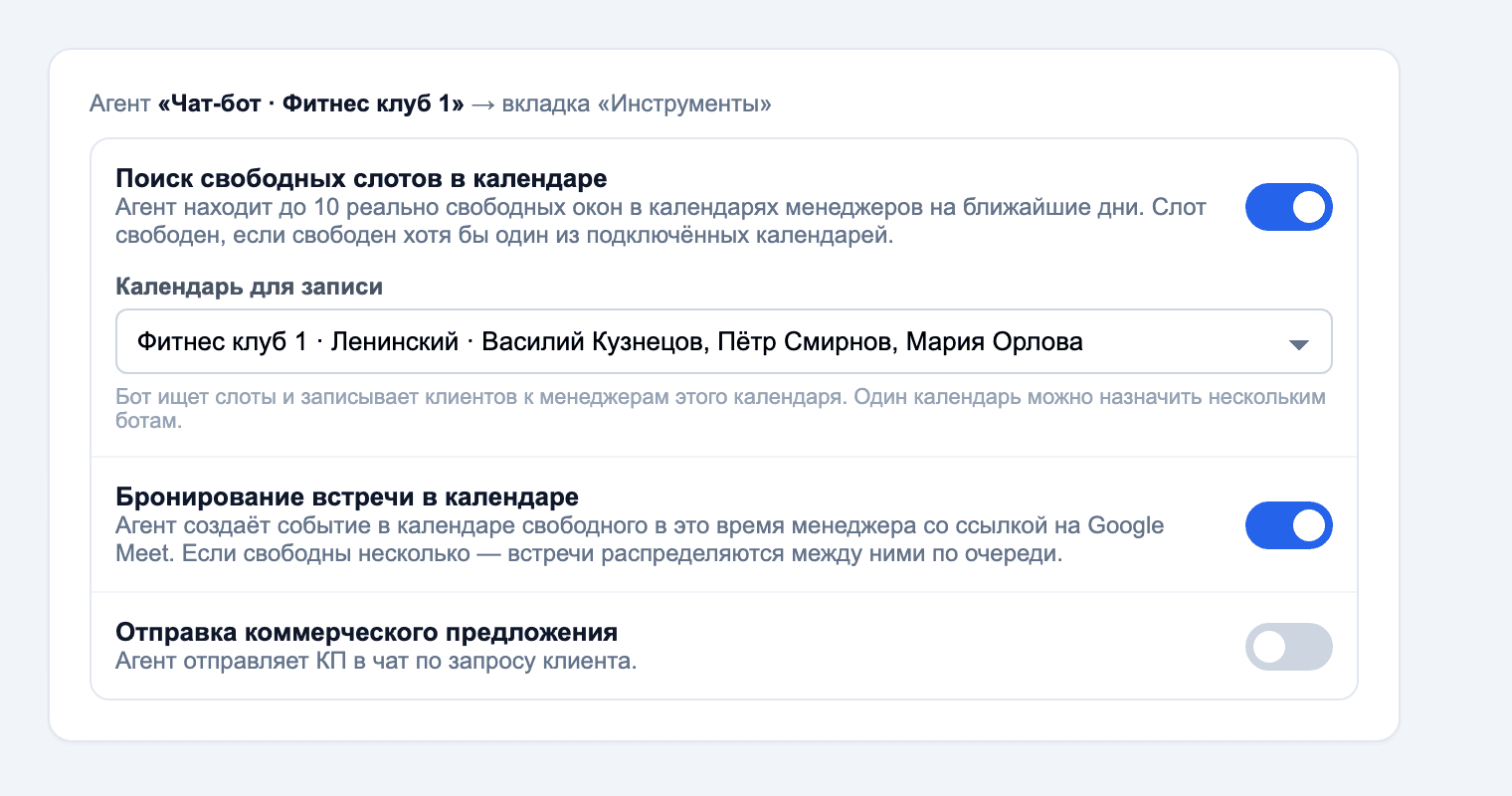
Make the same choice on every bot of the club. The chat bot and the voice bot of one club select the same calendar and book with the same managers.
What happens if nothing is selected
| Situation | Where the bot books |
|---|---|
| A calendar is selected | With that calendar's managers |
| Nothing selected, the company has exactly one calendar | Into that calendar |
| Nothing selected, several calendars or none | Into the company account's own calendar |
| The selected calendar was deleted | As in the two rows above |
With several clubs, select the calendar explicitly on every bot.
What it looks like in a conversation
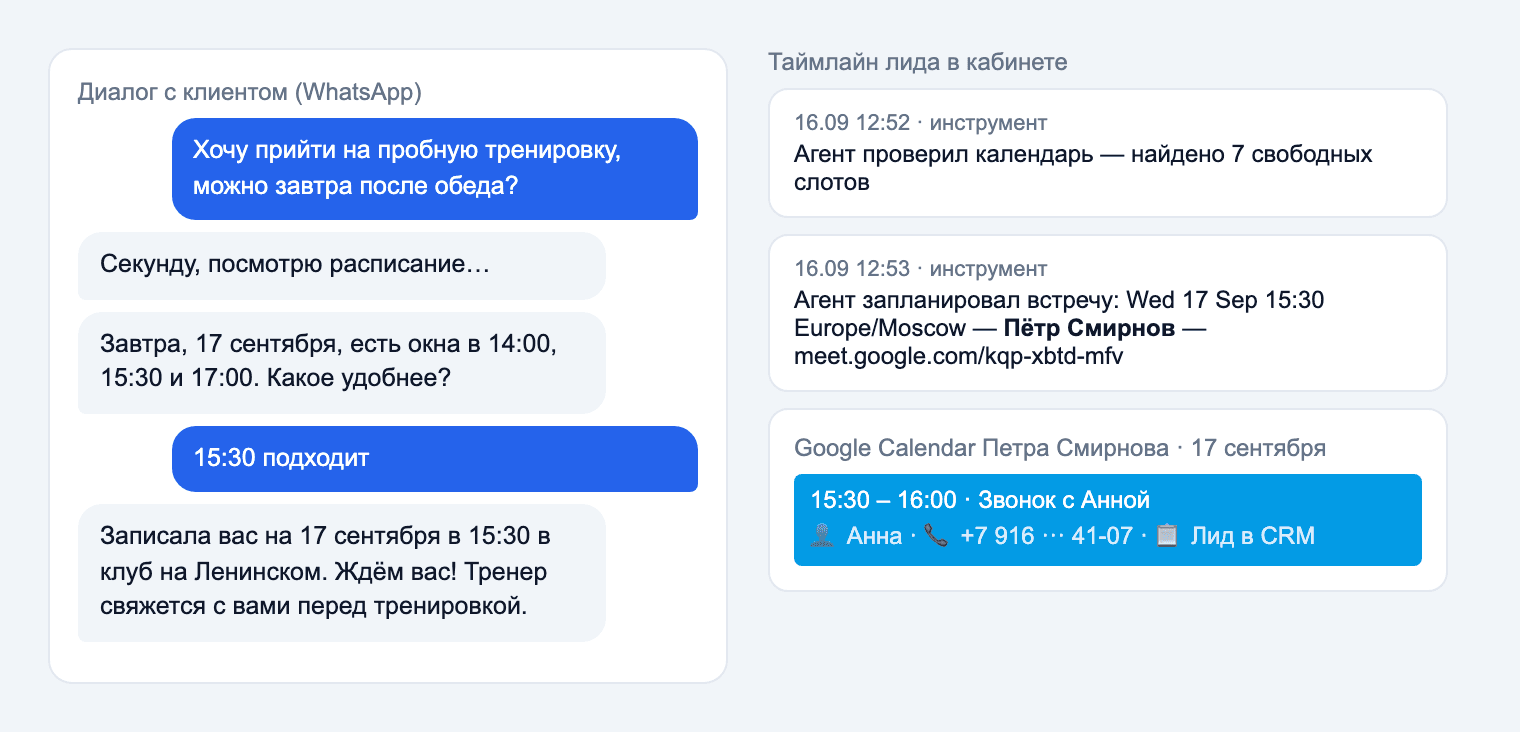
On the left is the conversation with the client. On the right is the lead timeline in the dashboard: the calendar check, the booking line with the manager's name and the Meet link, and the event as the manager sees it in their Google Calendar. The bot puts the client's name, phone number and a link to the lead into the event description, so the manager can open the conversation in one click.
FAQ
- Can a client be booked with a specific manager by name?
- No. The bot picks any free manager in the calendar. If your club needs booking by name or by service, contact your Sales Workshop account manager.
- Our clubs use different Google accounts. Will that work?
- One account is connected per company. Managers of all clubs share their calendars with that account. A separate connection per club is not supported.
- A manager has left.
- Untick them in the club's calendar. Events already created stay in their Google Calendar.
- A client messages on WhatsApp and also calls. Is that one booking?
- These are two separate conversations, and each makes its own booking if the client accepts a slot twice. The bot checks availability before booking, so it will never double-book the same manager for the same time.
- We reconnected Google. Are the calendars gone?
- No. When you reconnect the same account, the calendars and their members are kept. If a different account is connected, managers need to share their calendars with it again.