Transferring a call to a manager via Sipuni
A guide for Sales Workshop clients who use Sipuni telephony. We set up call transfer from the AI agent to a live manager so that the manager sees the client's real number and the call is distributed across the team.
What you get
- The AI agent answers inbound calls on your Sipuni number and qualifies the client.
- When the client asks for a live person (or is ready to buy), the agent transfers the call to a manager — within the same call, with no hang-up and call-back.
- The manager sees the client's real number, not the trunk number — and the call is correctly picked up by the Sipuni→CRM integration.
- The call goes not to a single phone but to a Sipuni queue that distributes it across your team of managers by your rules (order, timeouts).
How it works
You create two extensions (internal numbers) in Sipuni:
- Extension #1 — the AI agent. Its SIP credentials (server, username, password) are entered into the platform as a telephony channel. It receives inbound calls.
- Extension #2 — the transfer target. In the Sipuni dashboard it gets a personal scheme that distributes the incoming call to real managers according to queue rules.
Call flow:
Client → Sipuni → Extension #1 (AI agent)
                       │  client asks for a person
                       ▼
        AI sends the DTMF code  #<extension #2 number>#
                       │
                       ▼
Sipuni itself redirects the EXISTING client call
to Extension #2 → its personal scheme runs →
the call goes to a manager (who sees the client's number)
The transfer uses DTMF: the agent “dials” Sipuni's transfer code into the line, and the PBX switches the call on its side. That is why the manager keeps the client's caller ID. A direct call-back (the “Dial-out through our PBX” method) would show the manager the trunk number instead of the client's. Important: Sipuni accepts the hash-sign code #ext# — it does not execute the asterisk variant *ext#.
Transfer modes in the platform
The telephony channel settings offer three modes for transferring a call to a manager. This guide covers the second one (DTMF) — that is the one Sipuni needs — but it helps to understand all three:
- “Dial-out through our PBX” (default). The platform calls the manager itself and bridges them with the client. Works with any provider and any number (including mobile), but the manager sees the trunk number, not the client's. Choose it if you are unsure what your PBX supports.
- “Cloud PBX transfer code (DTMF)” — recommended for Sipuni. The platform “dials” a transfer code into the line, and the PBX itself switches the client's call to the manager — with the client's real number. The transfer target is an internal PBX extension, not a mobile number. If the PBX doesn't execute the code, the call automatically falls back to a regular dial-out.
- “SIP REFER (transfer on the PBX side)”. The same, but using a SIP protocol command instead of a code. Suitable only if your PBX accepts REFER from external connections (check with your provider). If the PBX refuses, the call also falls back to a regular dial-out.
Step 1. Set up Sipuni
- In your Sipuni account, create two extensions (internal numbers), for example
201for the AI agent and207for transfers. - Give extension #1 a SIP connection: under Users → Device details (Пользователи → Данные устройств), add a device of type “Other SIP device” (Другое SIP устройство). Sipuni will issue credentials — the server address (
sip.sipuni.com), a username and a password. These are what you enter into the platform in step 2: the AI agent takes calls through this connection. - Set up connections for managers: every manager in the queue needs their own device — usually the Sipuni app (Sipuni Connect) with an authorization key, installed on a phone or computer, or a SIP softphone. Without an active connection the queue can't reach the manager.
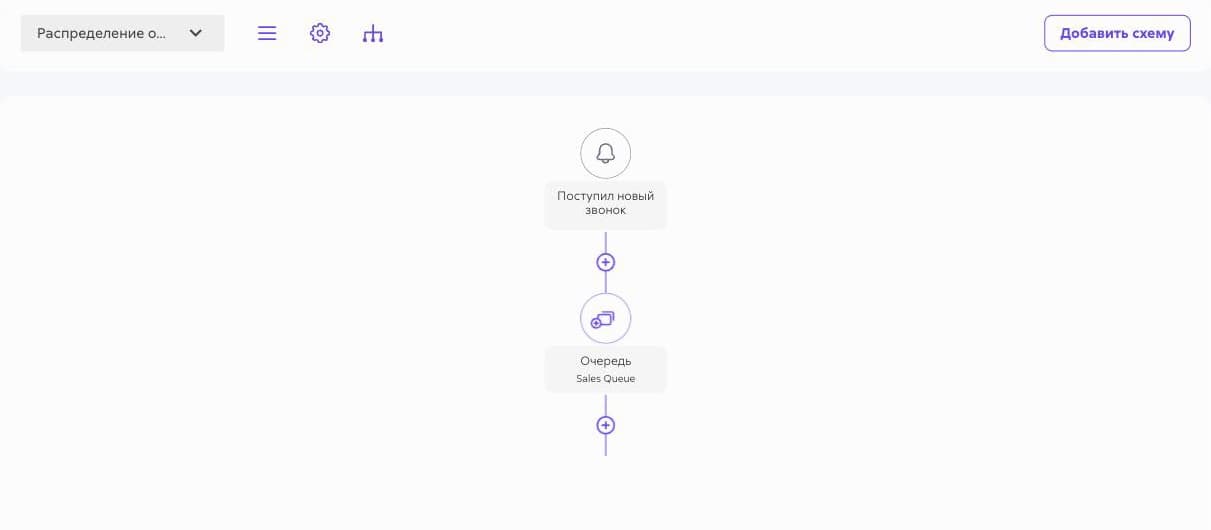
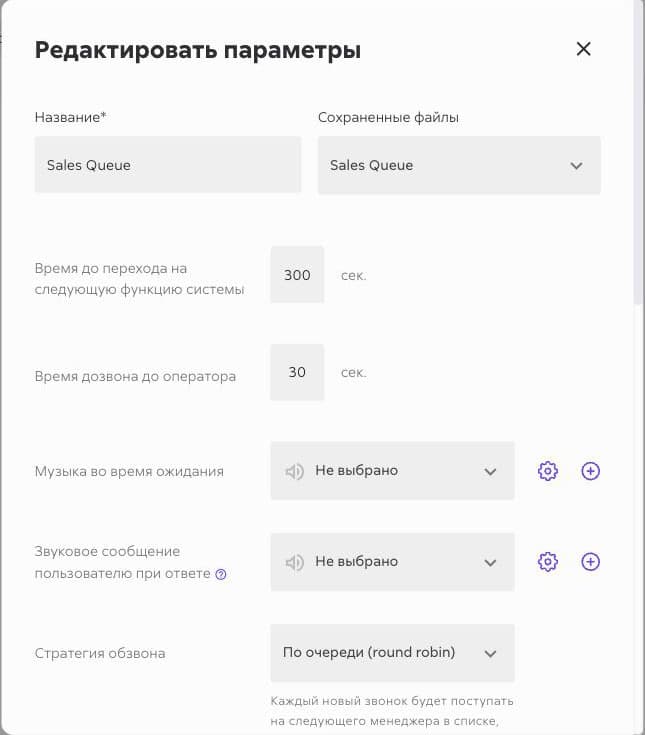
- On extension #2, set up a personal scheme: distribution of the incoming call across managers in a queue (ring order and timeouts are all configured in the Sipuni scheme). This is the scheme that runs when the AI transfers the call.
- Make sure both extensions are active and that call-control codes (DTMF transfer) are enabled in your Sipuni plan/settings.
Step 2. Set up the platform
Telephony channel
- Open Settings → Channels and create a channel of type Telephony with Sipuni as the provider.
- Fill in SIP host, SIP username and SIP password with the SIP credentials of extension #1 (the ones Sipuni issued for the “Other SIP device” in step 1).
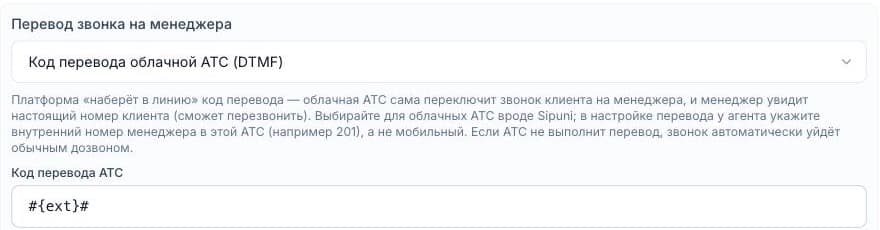
- In the Call transfer to a manager field, choose Cloud PBX transfer code (DTMF).
- In the PBX transfer code field that appears, enter
#{ext}#. The{ext}placeholder is automatically replaced with extension #2's number during the transfer.
If you are editing an existing channel, these fields are in the channel card under Advanced.
Transfer tool on the agent
- Open the agent's page and go to Tools.
- Enable the Call transfer to a person tool.
- In the Operator number field, enter the number of extension #2 — the internal Sipuni number (for example,
207), not the manager's mobile phone. Transfer won't be enabled without a number.
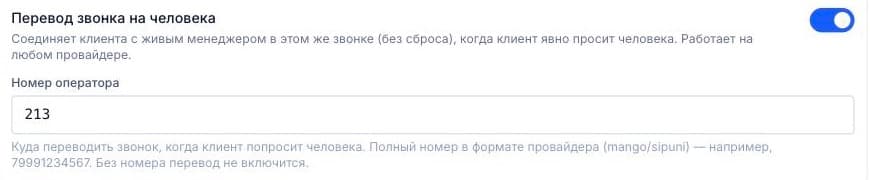
At transfer time the platform substitutes this number into the template and sends the code #207# into the line — Sipuni switches the call to extension #2, and its scheme runs.
How to test
- Call the agent's number from a regular mobile phone.
- During the conversation, explicitly ask to be connected to a live manager (“transfer me to a person”).
- The agent says a transfer phrase, and a few seconds later Sipuni switches the call — the manager's phone rings according to extension #2's scheme.
- Check that the manager sees your mobile number (the caller's number), not the trunk number, and that the call appears in Sipuni→CRM.
If the PBX doesn't complete the transfer (for example, nobody answers), the platform automatically calls the specified number the regular way — the call isn't lost, but in that case the manager sees the trunk number.
Common problems
- The transfer doesn't work and the manager sees the trunk number. Sipuni didn't execute the DTMF code, so the fallback dial-out kicked in. Check that the “PBX transfer code” field contains exactly
#{ext}#(with hash signs, not an asterisk) and that transfer codes are enabled in your Sipuni settings. - The call goes nowhere. Make sure extension #2 is active and that the agent's “Operator number” field contains its internal number (for example,
207), not a mobile number. - The transfer goes through, but no manager's phone rings. Check the personal scheme on extension #2 in the Sipuni dashboard: it must distribute the incoming call to managers (queue, order, timeouts).
- The queue rings, but managers don't pick up. Check the managers' connections under Users → Device details: each one needs an active Sipuni app (or SIP softphone) where the manager is signed in and online.
FAQ
- Why does the manager see the trunk number instead of the client's number?
- Sipuni didn't execute the DTMF code, so the fallback dial-out kicked in. Check that the “PBX transfer code” field contains exactly #{ext}# (with hash signs, not an asterisk) and that transfer codes are enabled in your Sipuni settings.
- Why does the transfer go through but no manager's phone rings?
- Check the personal scheme on extension #2 in the Sipuni dashboard: it must route the incoming call to managers, and every manager must have the Sipuni app or a SIP softphone online.